SMSOTPS Dashboard Guide: Orders, Codes and Balance
By SMSOTPS Support Team
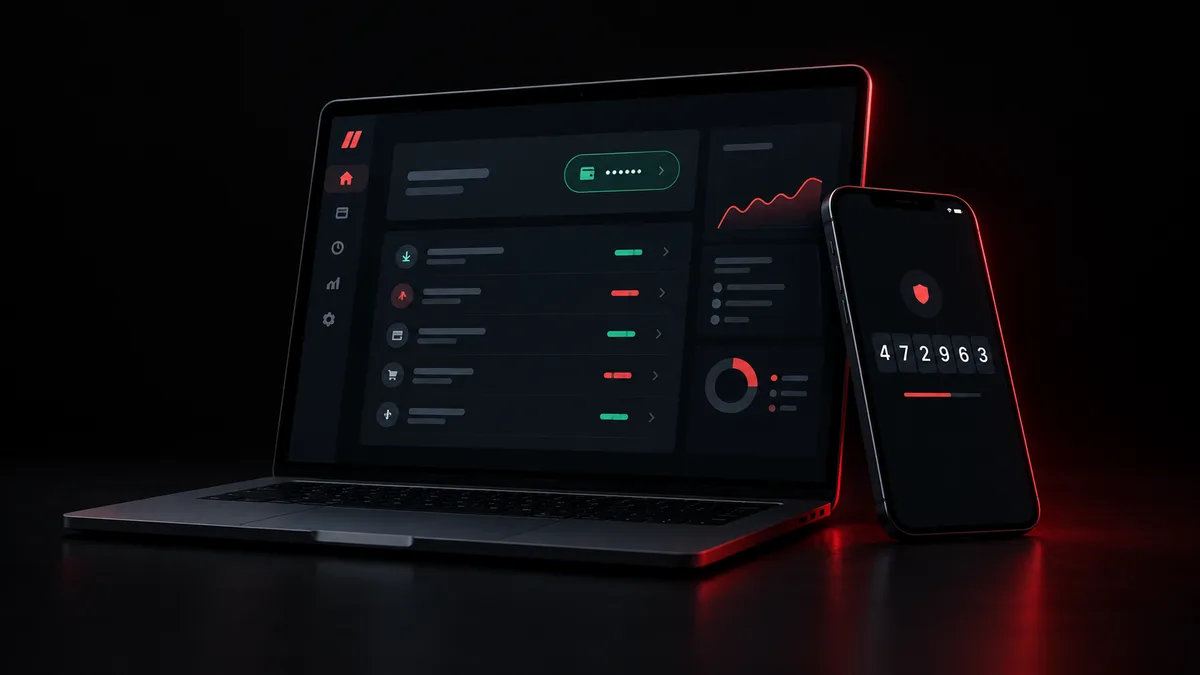
You just signed up. The dashboard is where the rest happens: you order a number, read the code, check what you already did, and add balance.
Sign-up itself asks for email and password, or Google. No phone number is needed to sign up. That surprises some new users, because the whole product is about phone numbers. The phone number comes later, inside the dashboard, when you order one for a specific sign-up.
Where everything sits
Five words run the top of the account: Order, Transfer, History, Deposit, API Docs.
Your balance sits top-right. It can be displayed in 16 currencies. Check it before you order, not after. An order charges your balance, so a quick look top-right saves a failed order and a second trip back to Deposit.
The account menu holds a different set: Profile, Order History, Deposit History, Logout. Keep that split in mind. Order History is what you bought. Deposit History is what you put in. They answer different questions, and mixing them up is the first way new users convince themselves money is missing when it is not.
New to the flow? The guide on how to complete SMS verification shows it end to end.
How to use SMSOTPS: order a number
Go to Order. Choose the service you are signing up to, and the country that service expects.
Look at the live price shown for that service and country before you buy. Current conditions, including price, live on the order page.
Buy the number. The price is charged from your balance.
Paste the number into the sign-up form for that service, exactly as shown, including the country code. Request the code once.
Then go back to your dashboard. The number and the SMS code appear in your dashboard. Enter the code in the sign-up form promptly and exactly as shown.
One reader, one account. Acceptance is the service's decision, not SMSOTPS's. The dashboard gives you a number and a code to try; it does not promise the service will accept that number.
Where do I receive the SMS code in the dashboard?
In the dashboard, with the order. Not in your email, not in a separate inbox, not on your own phone.
That distinction matters because the code does not arrive anywhere else. Stay in the dashboard after you request the code. If more than one code was requested, use only the newest code, as the SMSOTPS FAQ explains.
A code you read in the dashboard belongs to that order and that sign-up. Do not share it. A code is the whole point of the verification step, and anyone with it stands where you stand in that sign-up.
Reading order history without guessing
Open History, or Order History from the account menu, and you get a table with eight columns: Order ID, Service, Phone Number, SMS Code, Price, Date, Status, Action.
Read it left to right when something feels wrong. Order ID tells support exactly which order you mean, so quote it if you write in. Service and Phone Number tell you which sign-up the order was for. SMS Code is the code that arrived for that order. Price and Date are what that order cost and when it happened. Status and Action show where that order stands and what, if anything, the dashboard offers for it.
This article does not invent what each Status value means or what each Action button does, because those details live in the dashboard and in the FAQ and terms on the day you look. If a row still does not make sense, write to support@smsotps.com or use Telegram help, and include the Order ID.
Add balance, then check the right history
Deposit is where you add balance. Deposits are by crypto. This guide quotes no price, fee, or timing for a deposit, and no refund mechanics beyond pointing you to the FAQ and terms. Read those pages before you deposit, not after a deposit looks different from what you expected.
After a deposit, check Deposit History, not Order History. Deposit History is the record of money going in. Order History is the record of numbers bought. If you check the wrong one, a deposit that is recorded correctly looks absent, and an order that is recorded correctly looks like a deposit.
Transfer is separate again. Transfer sends balance to another user by their email. It is not a deposit, and it is not an order. If you meant to add balance to your own account, use Deposit. If you meant to send balance to someone else, use Transfer, and double-check the email before you send.
Profile and API key, in one place
Profile is where you change your password. It is also where an API key can be generated, rotated, or revoked.
Rotate a key when it stops being private, in the same way you would change a password. Revoke a key you no longer use. API Docs, in the main navigation, is where the documentation lives; this guide does not copy endpoint details here, because the docs are the version that counts.
The mistakes new users actually make
Ordering first, checking balance second. The balance is top-right for a reason. Look there, then order.
Requesting the code again because the first one did not appear at once. A second request replaces the first in practice, and then the code you finally enter is an old one. Request once, stay in the dashboard, enter the newest code promptly and exactly.
Treating a one-time number as the way back into an account. The dashboard order gives you a number and a code for that sign-up. If that account will ask for a code again later - a new login, a new device, recovery - a number you no longer control will not help you then. Set up a recovery method inside that service while you still have access, and do not make a short-term number the only route back into an account you cannot afford to lose.
Checking the wrong history. Order History, Deposit History, and a transfer are three different records. Name the one you mean when you write to support, and include the Order ID for an order question.
So, what should you actually do?
Sign in, look top-right at your balance, place one order for one sign-up, read the code in your dashboard, and then open Order History and find that row. Once you have done that loop once - balance, order, code, history - the dashboard stops being a set of menu words and starts being a tool you already know how to use.
More on receiving codes safely in the guide on how to receive SMS online safely.
Common questions
Where do I receive the SMS code in the SMSOTPS dashboard?
In the dashboard, with the order. Not in your email, not in a separate inbox, not on your own phone. Stay in the dashboard after you request the code, and if more than one code was requested, use only the newest one.
What is the difference between Order History and Deposit History?
Order History is what you bought - numbers, with Order ID, Service, Phone Number, SMS Code, Price, Date, Status and Action. Deposit History is what you put in - money added to your balance. Checking the wrong one makes a correctly recorded deposit or order look missing.
Do I need a phone number to sign up for SMSOTPS?
No. Sign-up asks for an email and password, or Google. The phone number comes later, inside the dashboard, when you order one for a specific sign-up.
Where is my API key in the dashboard?
In Profile, where you can generate, rotate, or revoke a key. Rotate a key when it stops being private and revoke one you no longer use. The endpoint documentation lives under API Docs in the main navigation.
What are the money rules for SMSOTPS?
SMSOTPS sells one-time SMS reception numbers. Payment, refund and balance rules are in SMSOTPS's own FAQ and terms pages, and those are the version that counts on the day you buy - they are not restated here.